This document is intended specifically for arrow developers who wish to know more about these scripts. If you are an arrow user looking for help with installing arrow, please see the installation guide
The arrow R package requires that Arrow C++ library (also known as libarrow) to be installed in order to work properly. There are a number of different ways in which libarrow could be installed:
- as part of the R package installation process
- a system package
- a library you’ve built yourself outside of the context of installing the R package
Below, we discuss each of these setups in turn.
Installing libarrow during R package installation
There are a number of scripts that are triggered when
R CMD INSTALL . is run and for Arrow users, these should
all just work without configuration and pull in the most complete pieces
(e.g. official binaries that we host). One of the jobs of these scripts
is to work out if libarrow is installed, and if not, install it.
An overview of these scripts is shown below:
configureandconfigure.win- these scripts are triggered duringR CMD INSTALL .on non-Windows and Windows platforms, respectively. They handle finding the libarrow, setting up the build variables necessary, and writing the package Makevars file that is used to compile the C++ code in the R package.tools/nixlibs.R- this script is called byconfigureon Linux and macOS (or on any non-windows OS with the environment variableFORCE_BUNDLED_BUILD=true). On windows this script is called byconfigure.winwhen environment variableARROW_HOMEis not set. It looks for an existing libarrow installation, and if it can’t find one downloads an appropriate libarrow binary. On non-windows if no binary could be found, the script sets up the build process for our bundled builds (which is the default on linux) and checks for dependencies.inst/build_arrow_static.sh- called bytools/nixlibs.Rwhen libarrow needs to be built. It builds libarrow for a bundled, static build, and mirrors the steps described in the Arrow R developer guide This build script is also what is used to generate our prebuilt binaries.
The actions taken by these scripts to resolve dependencies and install the correct components are described below.
How the R package finds libarrow
Windows
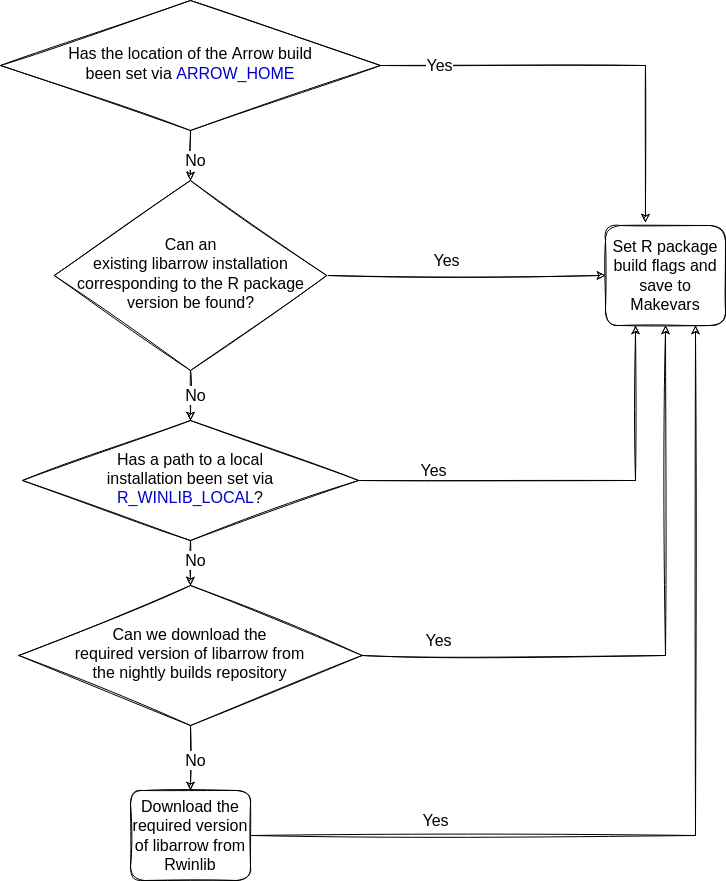
The diagram below shows how the R package finds a libarrow installation on Windows.
Checking for existing libarrow installations
When you install the arrow R package on Windows, if the
ARROW_HOME environment variable has not been set, the
install script looks for an existing libarrow installation. If this
cannot be find, it then checks whether the R_WINLIB_LOCAL
environment variable has been set to point to a local installation.
Downloading libarrow
If no existing libarrow installations can be found, the script proceeds to try to download the required version of libarrow, first from the nightly builds repository and then from Rwinlib. The script first tries to find a version of libarrow which is matches the most components according to semantic versioning, and in the case of a failure becomes less specific (i.e. if there are no binaries found for version 0.14.1.1, then try to find one for 0.14.1).
Non-Windows
On Linux and macOS, the core logic is:
- If
FORCE_BUNDLED_BUILD=true, skip to step 3. - Find libarrow on the system. If it is present, make sure that its version is compatible with the R package.
- If no suitable libarrow is found, download it (where allowed) or build it from source.
- Determine what features this libarrow has and what other flags it
requires, and set them in
src/Makevarsfor use when compiling the bindings.
Finding libarrow on the system
The configure script will look for libarrow in three
places:
- The path in environment variable
ARROW_HOME, if set - Whatever
pkg-configfinds, unlessARROW_USE_PKG_CONFIG=false - Homebrew, if you have done
brew install apache-arrow
If a libarrow build is found, it will then check that the version of that C++ library matches that of the R package. If the versions do not match, like when you’ve installed a system package for a release version but you have a development version of the R package, that libarrow will not be used. If both the C++ library and R package are on development versions, you will see a warning message advising you that if you do have trouble, you should ensure that the C++ library was built from the same commit as the R package, as development version numbers do not change with every commit.
Prebuilt binaries
If libarrow is not found on the system, the R package installation script will next attempt to download prebuilt libarrow binaries that match your both your local operating system, required dependencies (e.g. openssl version) and arrow R package version.
These are used automatically on many Linux distributions (x86_64
architecture only), according to the allowlist.
If your distribution isn’t in the list, you can opt-in by setting the
NOT_CRAN environment variable before you call
install.packages(). If found, they will be downloaded and
bundled when your R package compiles.
Building from source
If no suitable libarrow binary is found, it will attempt to build it
locally. First, it will also look to see if you are in a checkout of the
apache/arrow git repository and thus have the libarrow
source files there. Otherwise, it builds from the source files included
in the package. Depending on your system, building libarrow from source
may be slow. If libarrow is built from source,
inst/build_arrow_static.sh is executed.
Using the R package with libarrow installed as a system package
If you are authorized to install system packages and you’re
installing a CRAN release, you may want to use the official Apache Arrow
release packages corresponding to the R package version via software
distribution tools such as apt or yum (though
there are some drawbacks: see the “Troubleshooting” section in the
main installation docs). See the Arrow project installation
page to find pre-compiled binary packages for some common Linux
distributions, including Debian, Ubuntu, and CentOS.
If you are a developer contributing to the R package, system libarrow packages won’t be useful because the versions will not match.
Using the R package with an existing libarrow build
This setup is much more common for arrow developers, who may be needing to make changes to both the R package and libarrow source code. See the developer setup docs for more information.